Data Storage
All dates and times in the database will be stored in UTC format and will be displayed to the user according to the regional date/time settings.
Data Tables
All information will be stored in database tables.
Audit Trail
Changes to any information stored in the database are logged in audit trail tables.
User Audit Log Service
When installed and configured for a database the User Audit Log Service monitors specified database log tables for changes and records the following whenever a change is logged to the log table:
-
Parent item to which the change was associated
-
Primary key values (any other identifying values for the table entry)
-
Message for the user describing type of change made
-
Date/time the change was made
-
Username of the user who made the change
-
Terminal from which the change was made
Flexible Audit Trail
Two audit trails are included in the system:
-
Table level audit trail maintained by database triggers that will log any data changes automatically – currently implemented in baseline AccuSOLO.
-
A flexible audit trail that provides summary information about updates that took place recording what was performed, from which terminal, who did it, and (date/time) when it was done. This audit trail also allows the user entered comments. The flexible audit trail is available for the following:
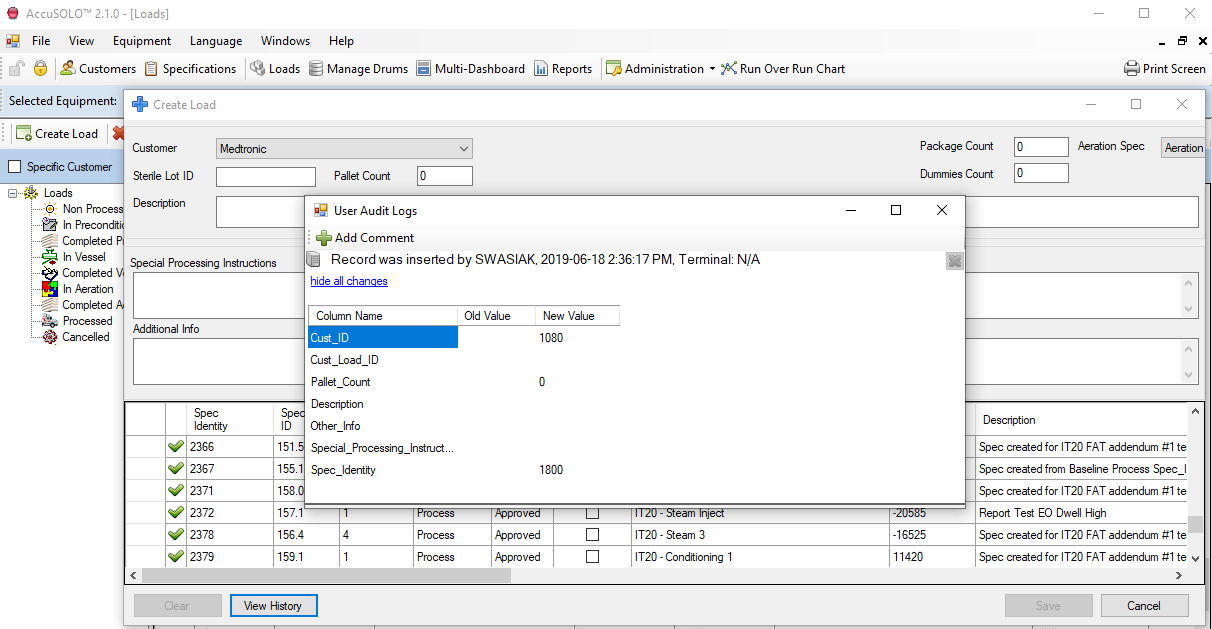
Loads
-
In the Loads Management module, edit a load.
-
On the Edit Loads form, click View History.
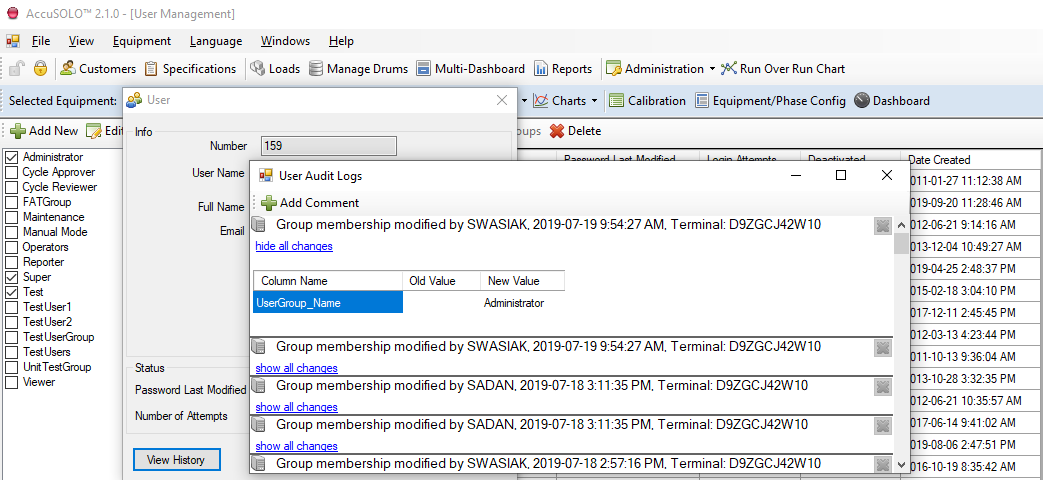
User Management
-
In the User Management module, edit a user account.
-
On the User pop-up window, click View History.
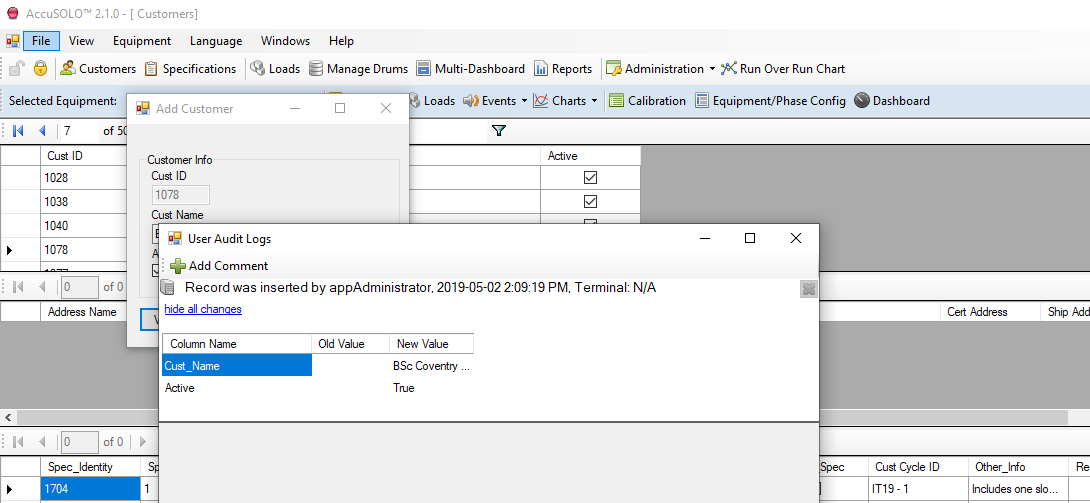
Customers
-
In the Customers module, edit a customer.
-
On the Customer info window, click View History.
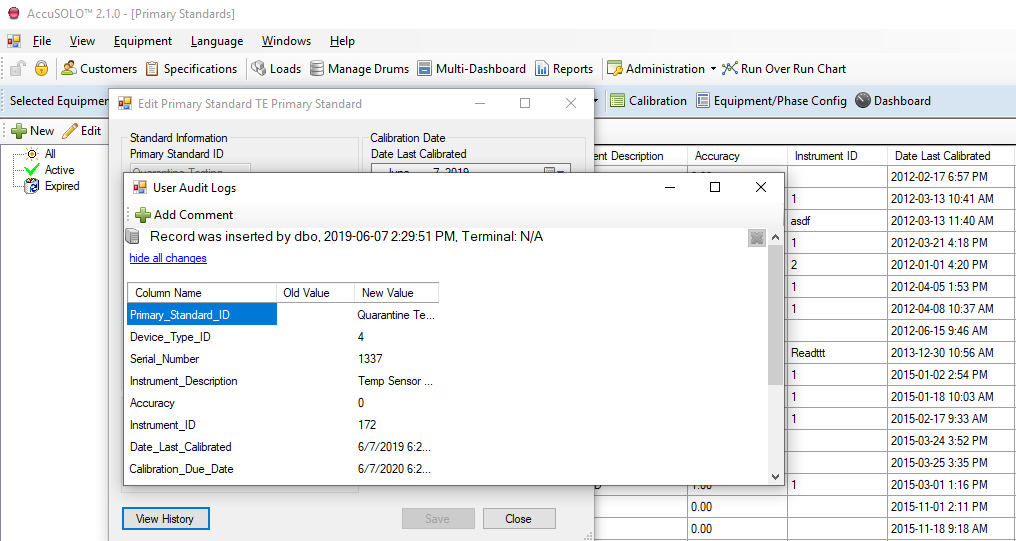
Primary Standard Management
-
In the Primary Standard Management grid, click on either the Add/Edit icon
-
On the Add/Edit pop-up window, click View History.
Calibrations
-
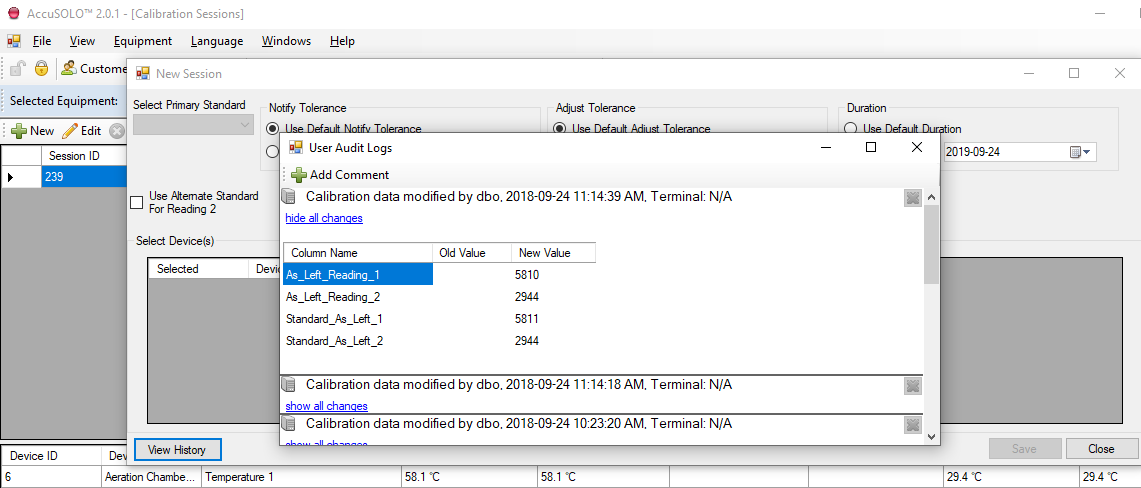
In the Calibrations Module, edit a Primary Standard
-
On the Edit form, click View History.
Event Configuration
-
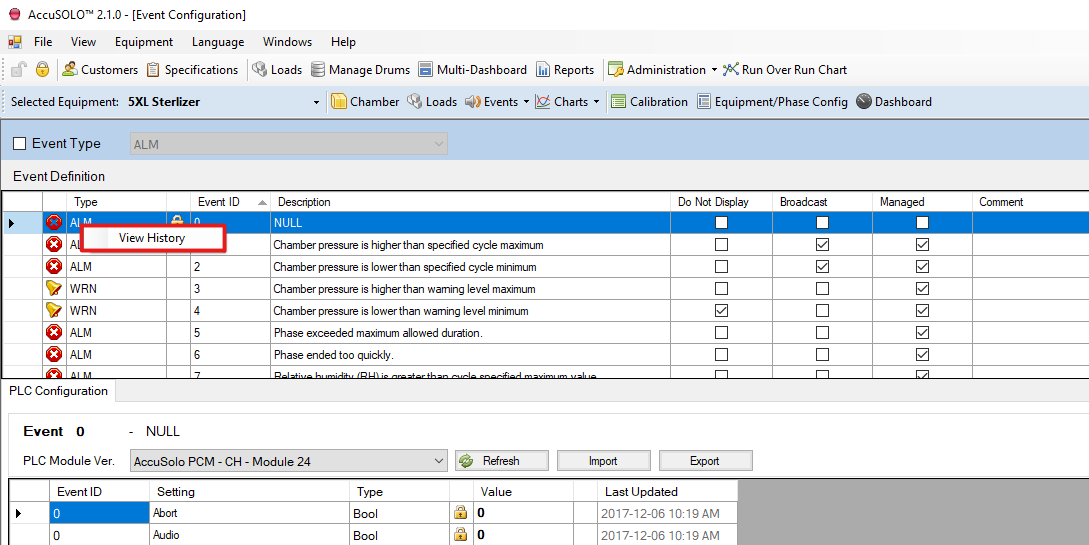
The Event Configuration module can be accessed from the Administration drop-down menu
-
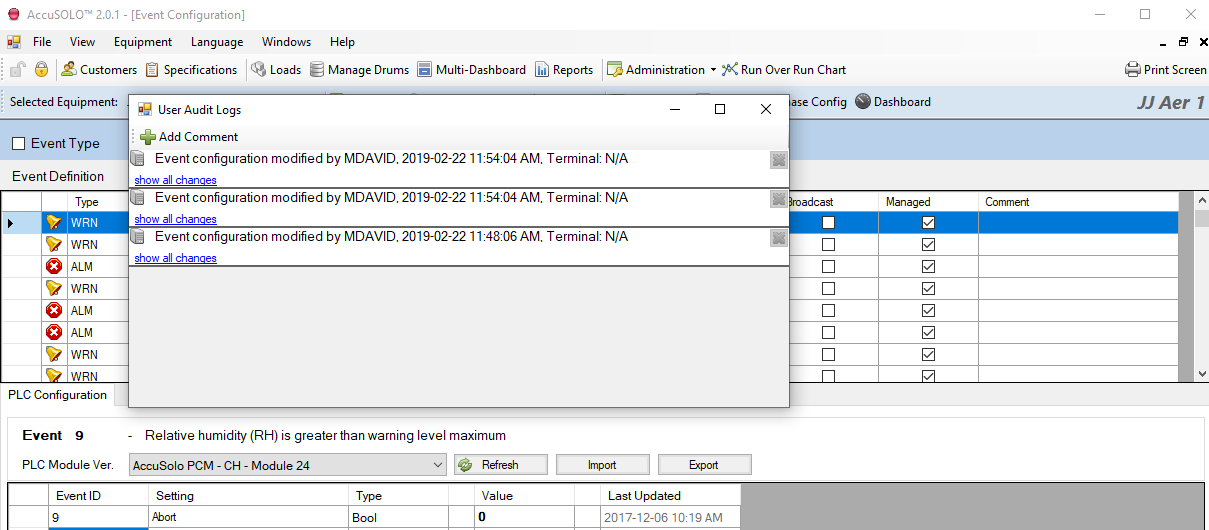
On the Event Configuration grid, right-click an Event type.
Chamber Configuration
-
On the Chamber Configuration module, click View History.
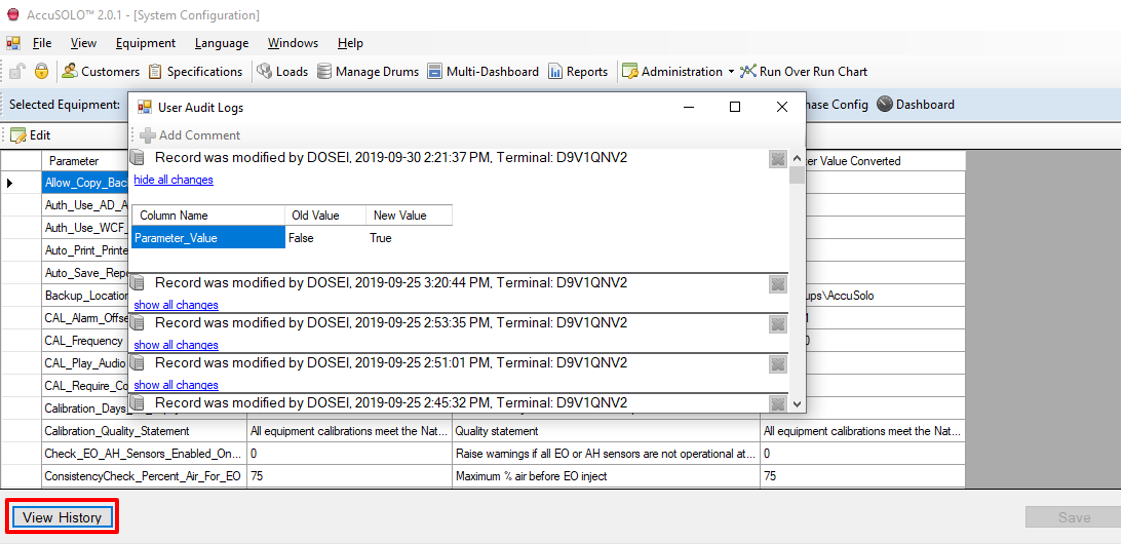
System Configuration
-
In the System Configuration module, click View History.
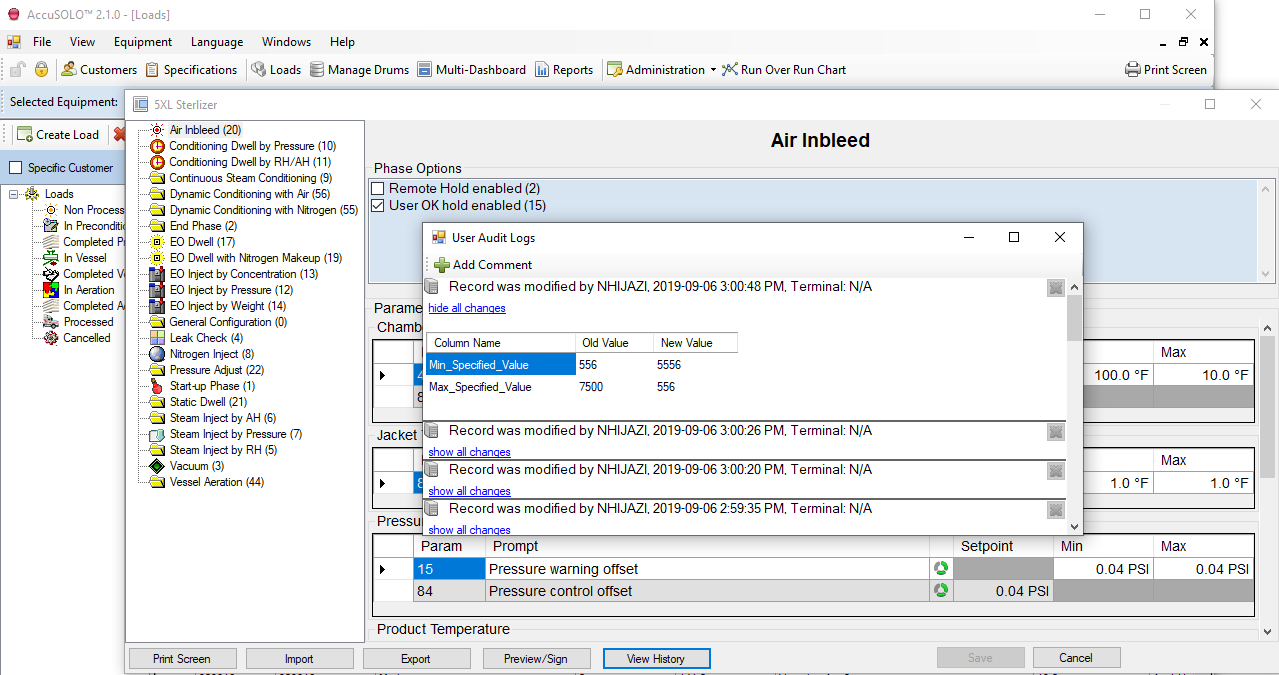
Equipment/Phase Configuration
-
On the Equipment/Phase Configuration form, click View History.
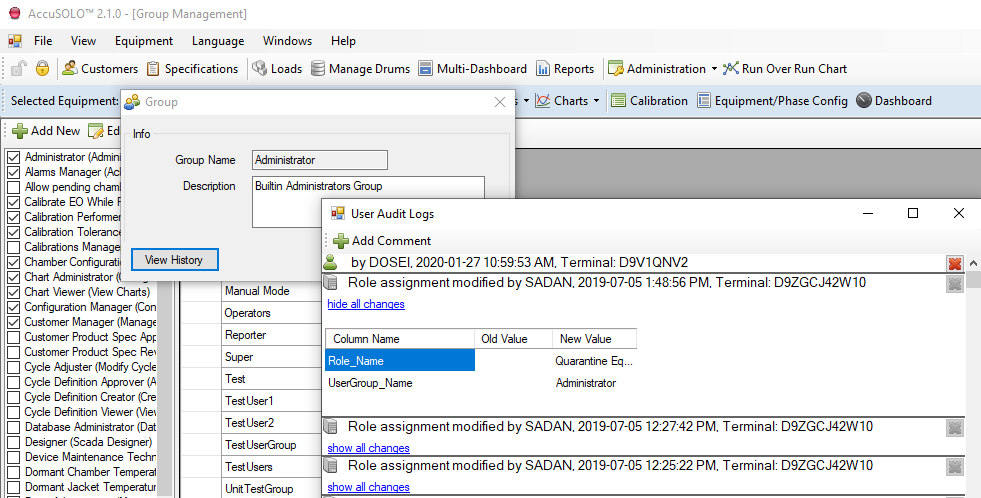
Group Management
-
On the group management grid, Edit a group.
-
Click View History.
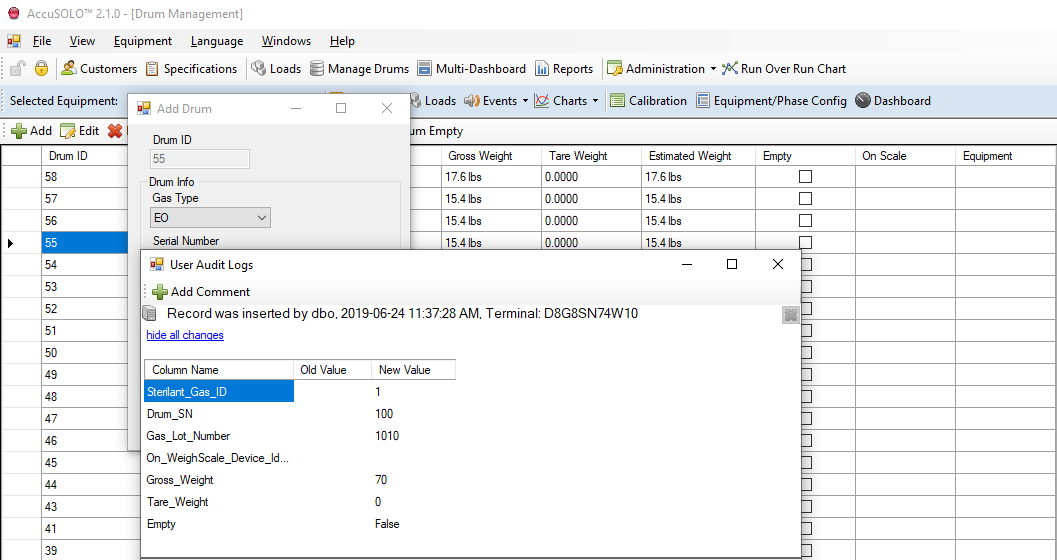
Drum Management
-
On the drum management grid, edit a Drum.
-
On the Add/Edit pop-up window, click View History.